To set a time limit on an app on iPhone, use Screen Time: App Limits on iOS 26, Time Allowances on iOS 27. Some apps also have their own limit: Instagram’s Daily limit, TikTok’s Daily screen time and YouTube’s Shorts feed limit. By default these limits can be ignored once reached. For a limit that holds, use an app blocker such as Bouncer with a daily limit Rule.
Set an app limit with Screen Time (iOS 26)
If you select several apps or categories, the limit applies to all of them together. Apple notes that by default, limits can be ignored once reached.
- Open Settings → Screen Time, then tap App Limits.
- Tap Add Limit and select a category, or open the category to select individual apps.
- Tap Next, then set the time allowed.
- To set different limits for different days, tap Customize Days.
Set a Time Allowance (iOS 27)
On iOS 27, Time Allowances work by category. Apple states that these features need iOS 27 or later on all your Apple devices.
- Open Settings → Screen Time, then tap Time Allowances.
- Tap a category, such as Social Media, and drag the slider to set the time.
- Tap Manage Categories to add a category or see your average daily use.
Use the app’s own limit
Details: block Instagram, block TikTok, block YouTube Shorts.
| App | Where | At the limit |
|---|---|---|
| Profile → Menu → Time management → Daily limit | A reminder | |
| TikTok | Profile → Menu → Settings and privacy → Screen time → Daily screen time | A notification; can be turned off |
| YouTube | You → Settings → Time management → Shorts feed limit | A reminder you can dismiss; the list includes zero |
Set a daily limit in Bouncer
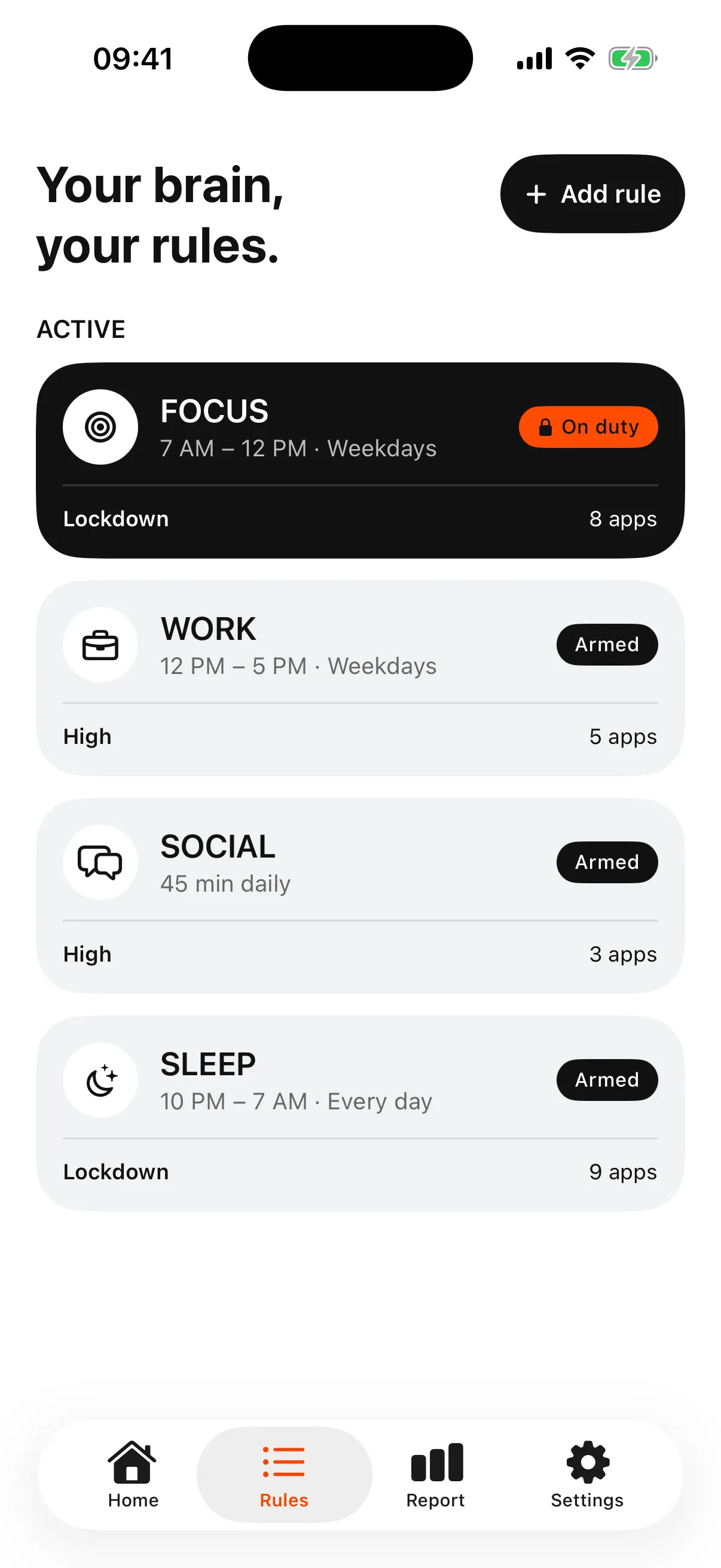
When the limit is reached, the apps show a shield with no unblock button. With Normal, you can still get 5, 10 or 15 minutes after a short wait. With High, each successful unblock makes the next wait longer and the session shorter. The limit resets every day.
- Create a Rule, or start from the Social preset.
- Select the apps in Apple’s app picker.
- Choose a daily limit and set the minutes.
- Choose Normal or High. Lockdown needs a scheduled window, not a daily limit.
Which limit fits
If a reminder is enough, start with Screen Time or the app’s own setting. If you keep going past it, see why Screen Time limits get ignored.
| Screen Time limit | App’s own limit | Bouncer daily limit | |
|---|---|---|---|
| Price | Free, built in | Free | Monthly (7-day free trial if eligible) or Lifetime |
| At the limit | A reminder you can ignore, by default | A reminder or notification | A shield; access only through Bouncer after a wait |
| Covers | Apps or categories | That app only | The apps in the Rule |
Frequently asked questions
Can I set a time limit on just one app?
Yes. On iOS 26, in App Limits, open a category and select only that app. In Bouncer, a Rule can contain a single app.
Can I set different limits on different days?
On iOS 26, App Limits have a Customize Days option.
Why can I still use an app after its limit?
Apple designs Screen Time limits so they can be ignored once reached by default. Apps’ own limits are reminders too.
When does a daily limit reset?
Every day. In Bouncer, the apps stay blocked until the next day once the limit is reached, apart from the temporary access your Level allows.
Sources
- Apple: Set schedules with Screen Time on iPhone (iOS 26) ↗
- Apple: Screen Time Schedules and Time Allowances on iPhone (iOS 27) ↗
- Instagram Help Center: Set a daily time limit on Instagram ↗
- TikTok Help Center: Screen time ↗
- YouTube Help: Set a Shorts feed limit ↗
Sources checked on 26 September 2026. External features and offers can change.
A boundary you choose.
Start with a context you want to protect on your iPhone.