You can limit Instagram on iPhone in three ways. Instagram’s own Daily limit sends a reminder after the time you choose. Screen Time can limit Instagram by schedule or daily time, and on iOS 26 it can block it during Downtime with Block at Downtime and a passcode. An app blocker such as Bouncer blocks the Instagram app during the hours or after the daily limit you choose. None of these methods blocks only Reels: they limit the whole app.
Option 1: Instagram’s daily limit (a reminder)
Instagram describes this as a reminder that tells you when you have spent a certain amount of time in the app during the day. Teen Accounts have a default one-hour daily limit, and a parent can choose to block Instagram after the limit.
- In Instagram, tap your profile picture at the bottom right.
- Tap the menu at the top right.
- Below How you use Instagram, tap Time management.
- Tap Daily limit, then choose an amount of time.
Option 2: Screen Time
On iOS 26, open Settings → Screen Time → App Limits → Add Limit, open the Social category, select Instagram, then set a time. For a schedule, use Downtime. Apple notes that limits can be ignored once reached by default; Block at Downtime with a Screen Time passcode keeps apps closed during Downtime.
On iOS 27, use Screen Time Schedules and a Time Allowance for the Social Media category. Apple states that if an app declares an associated website, the Time Allowance applies to both.
Option 3: Block Instagram with Bouncer
Once the Rule is on duty, Instagram shows a shield with no unblock button. To open it anyway, you go through Bouncer: after a wait on Normal or High you get 5, 10 or 15 minutes; on Lockdown the app stays closed until the window ends.
Bouncer blocks the Instagram app. It does not block instagram.com in Safari.
- Create a Rule, or start from the Social preset.
- Select Instagram in Apple’s app picker. Add other apps that replace it for you, if any.
- Choose a scheduled window, for example 10 PM to 7 AM, or a daily limit.
- Choose a Level: Normal, High or Lockdown.
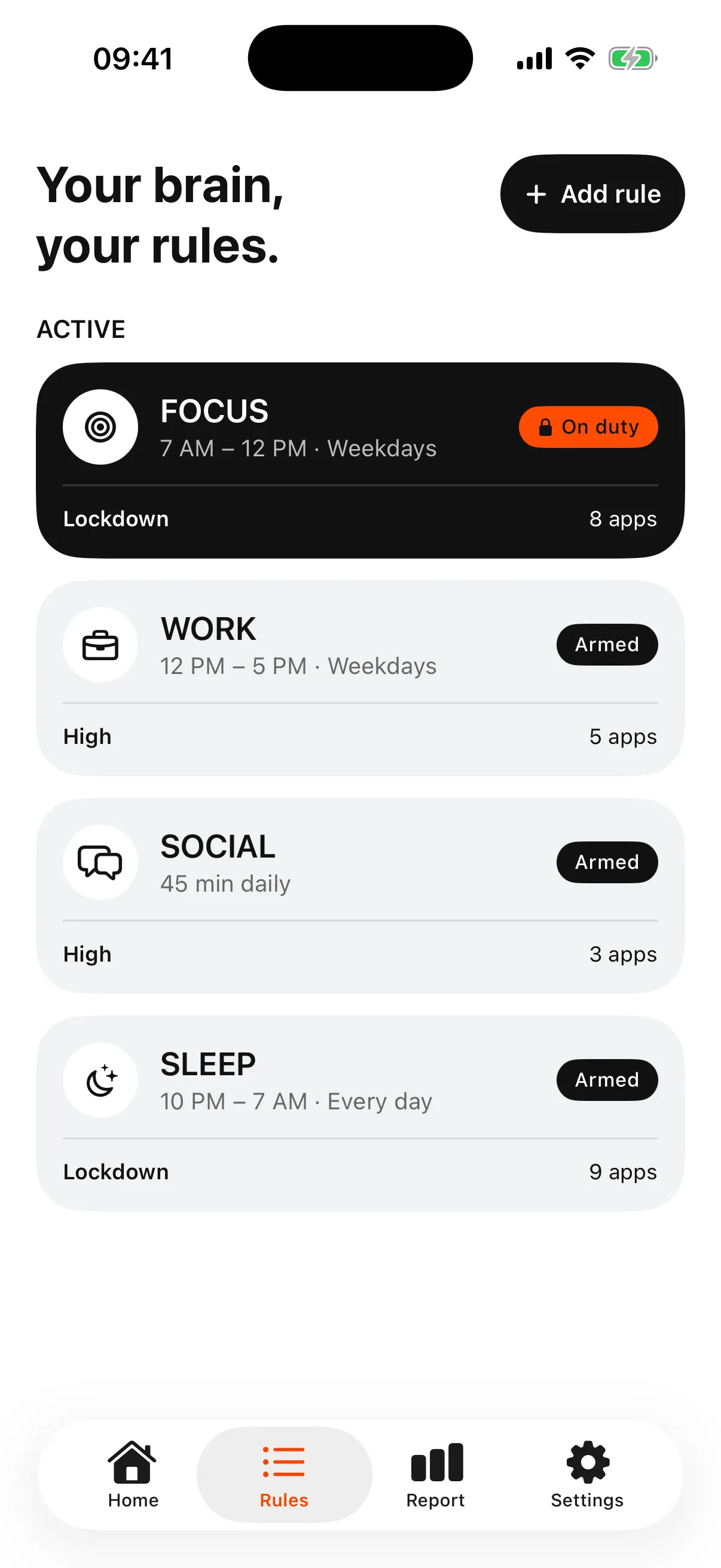
📸 Add the other apps you switch to when Instagram is blocked, or the scrolling simply moves there.
Delete, limit or block?
Deleting Instagram removes the app until you reinstall it. For other apps, see how to block TikTok and YouTube Shorts. A daily limit reminder fits if you mostly want to notice the time. A schedule or an app blocker fits if one moment matters most, such as work hours or bedtime, and you want the app closed during that moment while you keep it for the rest of the day.
Frequently asked questions
Can I block only Instagram Reels on iPhone?
Instagram’s daily limit, Screen Time and Bouncer all apply to the whole Instagram app. None of them blocks only Reels.
Does Instagram’s daily limit block the app?
For most accounts it is a reminder. Instagram notes that for Teen Accounts, a parent or guardian may choose to block Instagram after the limit.
How do I block Instagram at night?
Use a schedule: Downtime on iOS 26, a Screen Time Schedule on iOS 27, or a Bouncer Rule with a night window.
Sources
- Instagram Help Center: Set a daily time limit on Instagram ↗
- Apple: Set schedules with Screen Time on iPhone (iOS 26) ↗
- Apple: Screen Time Schedules and Time Allowances on iPhone (iOS 27) ↗
Sources checked on 24 September 2026. External features and offers can change.
A boundary you choose.
Start with a context you want to protect on your iPhone.