
Many Screen Time limits that “do not work” work as Apple designed them. Apple documents that by default, Screen Time limits can be ignored once reached. On iOS 26, apps stay closed only during Downtime with Block at Downtime turned on, and that option needs a Screen Time passcode. On iOS 27, the new Schedules and Time Allowances need iOS 27 or later on all your Apple devices. Check these settings first. If the real problem is that you ignore limits you set yourself, a stricter app blocker can help.
By default, a limit is a reminder
Apple’s iOS 26 documentation says: “By default, Screen Time limits can be ignored once reached.” When Block at Downtime is off, you see a reminder that it is Downtime, but you can continue to use the apps. This is expected behavior, not a bug.
When Block at Downtime is on, restricted apps cannot be opened during Downtime. They appear dimmed with an hourglass icon. Apple offers this choice only when a Screen Time passcode is set.
Check these settings on iOS 26
- ⚙️ Settings → Screen Time: make sure App & Website Activity is on.
- Set a Screen Time passcode. Without it, you cannot choose to block apps completely during Downtime.
- Tap Downtime and turn on Block at Downtime.
- Check Always Allowed. An app in that list stays available during Downtime and after its limit.
- Open App Limits and check that the limit includes the right app or category, and the right days if you used Customize Days.
⚠️ Most “broken” limits are working as designed: without Block at Downtime and a passcode, a limit is only a reminder.
Check these points on iOS 27
iOS 27 replaces Downtime and App Limits with Screen Time Schedules and Time Allowances. Apple states that these features need iOS 27, iPadOS 27, macOS 27, watchOS 27, visionOS 27 or later on all your Apple devices. If one device in your setup is not updated, check it first.
Also check Always Allowed, and check that the category with the Time Allowance contains the app you want to limit. Time Allowances apply to categories such as Social Media, Entertainment and Games.
If you ignore limits you set yourself
A passcode that you know stops you only for the time it takes to type it. Some people ask another person to set and keep the Screen Time passcode. Others use an app blocker that decides what happens when they want more time, instead of offering an ignore option.
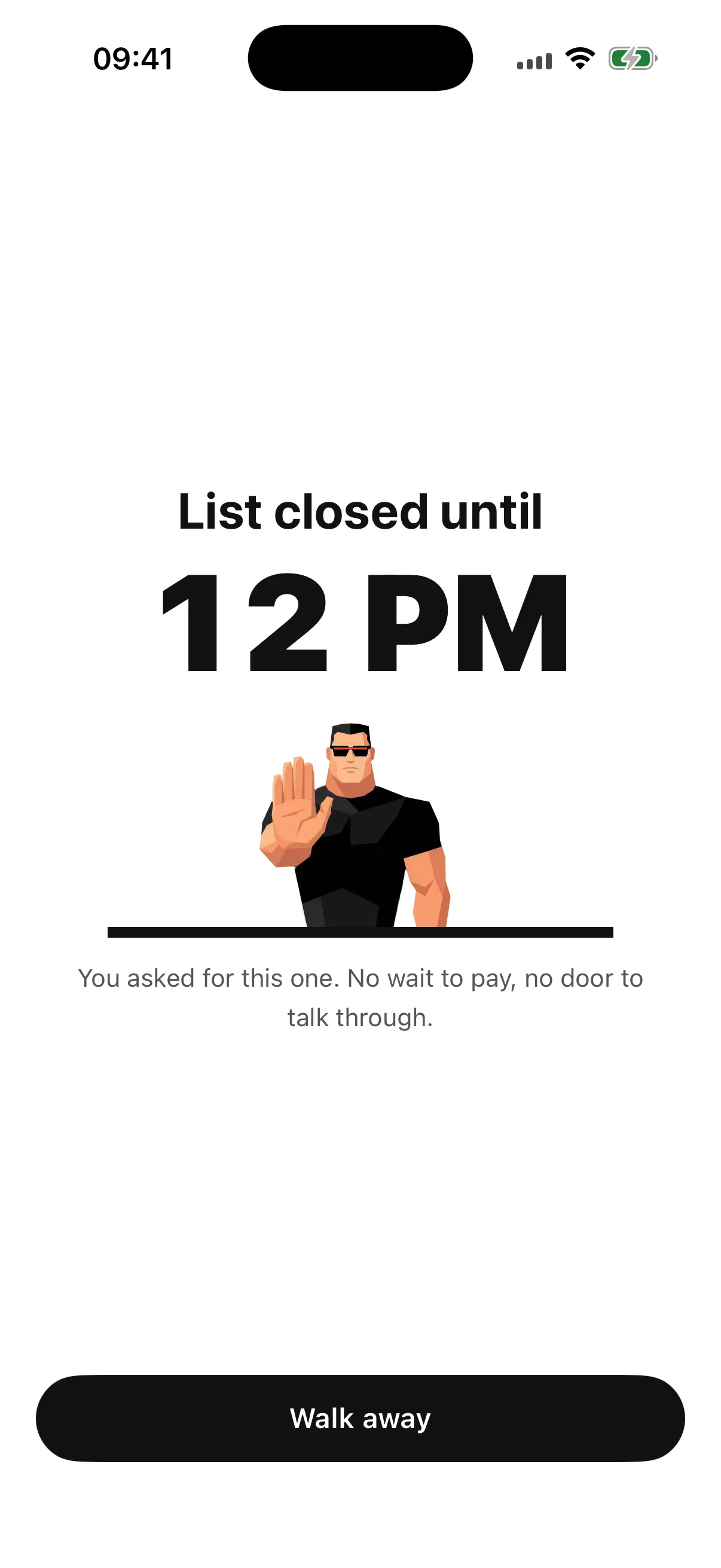
Bouncer has no ignore option. A blocked app shows a shield with no unblock button, and access goes through Bouncer. What happens next depends on the Rule’s Level: a short wait with Normal, a wait that grows after each successful unblock with High, or no temporary unblock until the window ends with Lockdown.
Changing or turning off an active Normal or High Rule also requires a wait, unless temporary access is already running. An active Lockdown cannot be edited. No app can promise that every workaround is impossible; all blocking depends on Apple system services. To set it up, follow how to block apps on iPhone.
Frequently asked questions
Why does Screen Time let me ignore my limit?
Apple designs Screen Time limits so that they can be ignored once reached by default. On iOS 26, turn on Block at Downtime with a Screen Time passcode to stop apps from opening during Downtime.
Why is my Screen Time schedule not working after iOS 27?
Apple states that Screen Time Schedules and Time Allowances need iOS 27 or later on all your Apple devices. Update every device, then check Always Allowed and the categories in your Time Allowances.
Can I block apps completely without a Screen Time passcode?
Apple lets you choose to block apps completely during Downtime only when a Screen Time passcode is set. An app blocker such as Bouncer uses its own rules after you give Screen Time authorization.
Does Bouncer have an ignore limit button?
No. A blocked app has no unblock button. To get access, you open Bouncer, and the Rule’s Level decides the wait, the session length, or whether access is possible.
Sources
- Apple: Set schedules with Screen Time on iPhone (iOS 26) ↗
- Apple: Screen Time Schedules and Time Allowances on iPhone (iOS 27) ↗
Sources checked on 24 September 2026. External features and offers can change.
A boundary you choose.
Start with a context you want to protect on your iPhone.