SHORT ANSWER
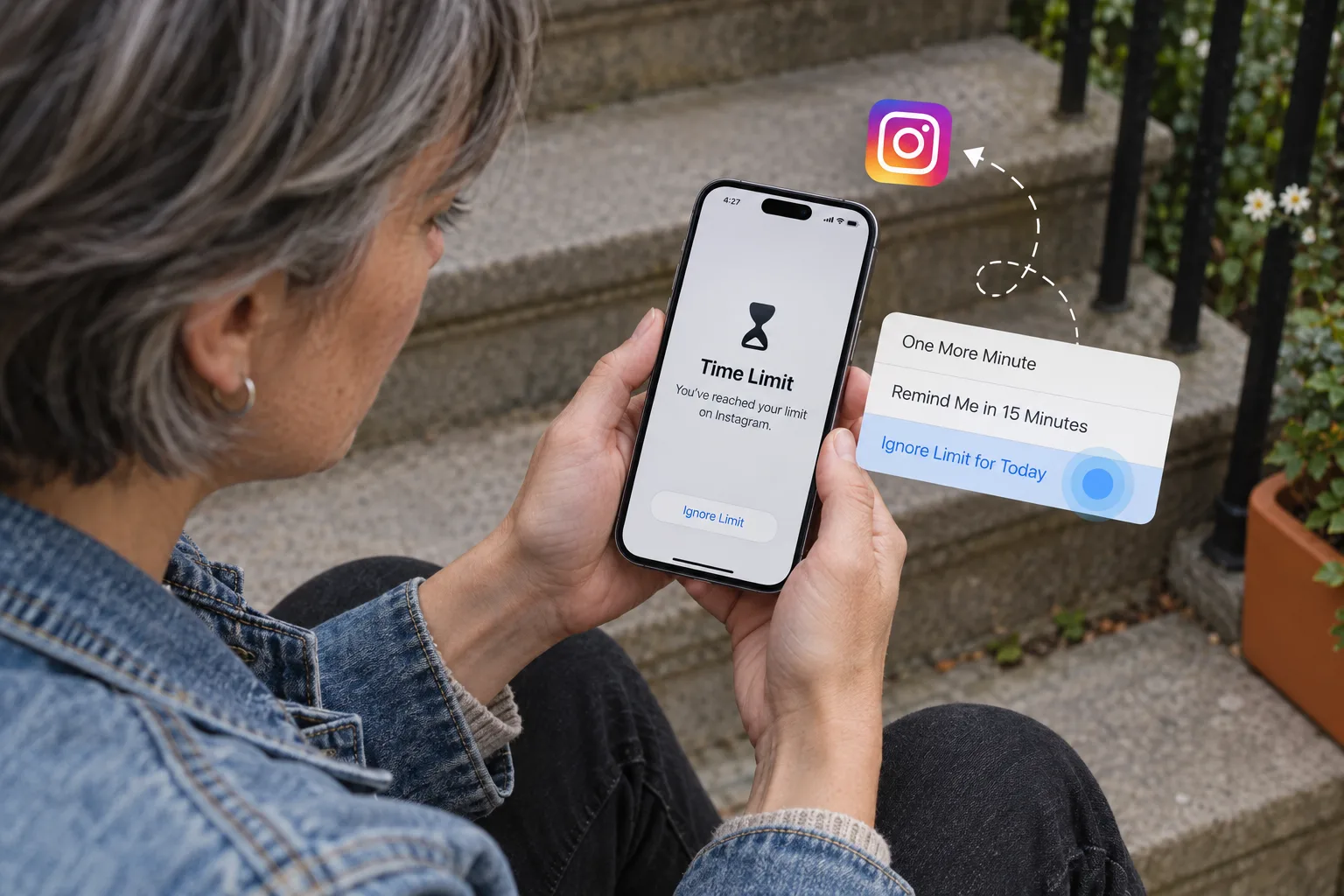
You can block apps on iPhone in two ways. Apple’s Screen Time limits apps by schedule or by daily time: Downtime and App Limits on iOS 26, Screen Time Schedules and Time Allowances on iOS 27. An app blocker such as Bouncer uses Apple’s Screen Time framework to block the apps you select, then decides what happens when you ask for access. Apple notes that on iOS 26, Screen Time limits can be ignored once reached unless you set a Screen Time passcode and turn on Block at Downtime (why limits get ignored).
Decide what you want to block, and when
Write one sentence before you change a setting: “No social media while I work in the morning,” or “Thirty minutes of social apps per day.” The first sentence needs a schedule. The second needs a daily limit. Then select only the apps that interrupt that moment.
Leave out the tools you need. If you use a messaging app for work, blocking it makes the rule hard to keep.
Block apps with Screen Time on iOS 26
Apple’s documentation says that by default, Screen Time limits can be ignored once reached. When Block at Downtime is off, you see a reminder and can continue to use the app. When it is on, restricted apps cannot be opened during Downtime.
- Open Settings, then tap Screen Time. Turn on App & Website Activity if it is off.
- For a schedule, tap Downtime, tap Scheduled, then set the days, start time and end time.
- For a daily limit, tap App Limits, tap Add Limit, select apps or categories, then set the time.
- To stop yourself from ignoring Downtime, set a Screen Time passcode, then turn on Block at Downtime.
💡 If you set the passcode yourself, you can always type it. Ask someone you trust to set it and keep it.
Block apps with Screen Time on iOS 27
iOS 27 replaces Downtime and App Limits with Screen Time Schedules and Time Allowances. A schedule defines time windows, such as work or evening. Time Allowances set how long you can use categories such as Social Media, Entertainment or Games each day. Always Allowed keeps chosen apps and contacts available.
- Open Settings, tap Screen Time, tap Screen Time Schedule, then turn on Schedule.
- Tap Add Schedule, choose the days, then set each time window.
- Tap Time Allowances to set how long each category can be used.
Why people add an app blocker
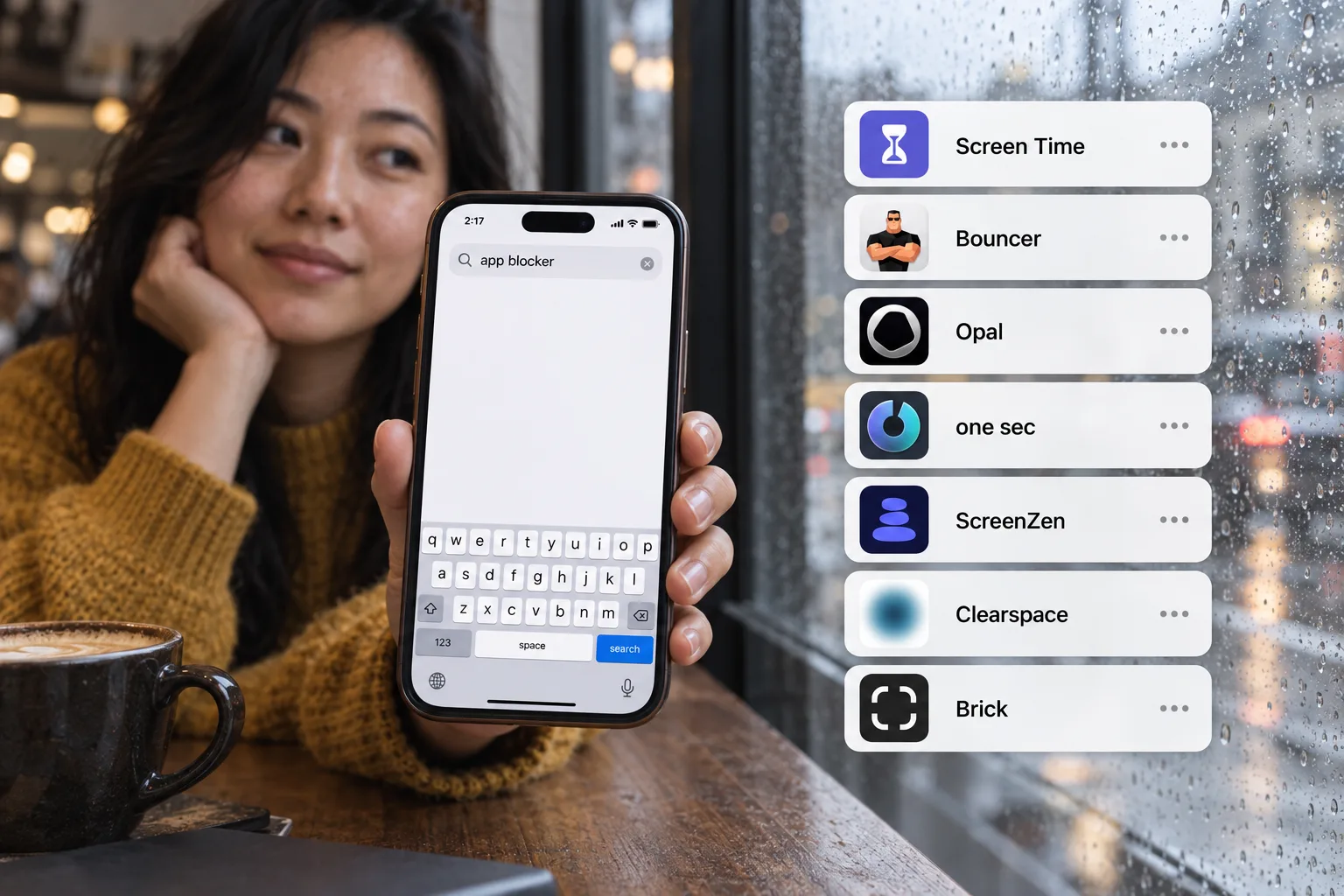
If you know the passcode, or a limit can be ignored with one tap, a Screen Time block is really a reminder. An app blocker decides what happens when you ask for access: a wait, a shorter session, or no access until a window ends. See how the main app blockers compare.
iPhone app blockers do not need a jailbreak. Bouncer asks for Screen Time authorization and uses Apple’s Screen Time framework to shield the apps you select.
Block apps with Bouncer
- Install Bouncer and allow Screen Time access when it asks.
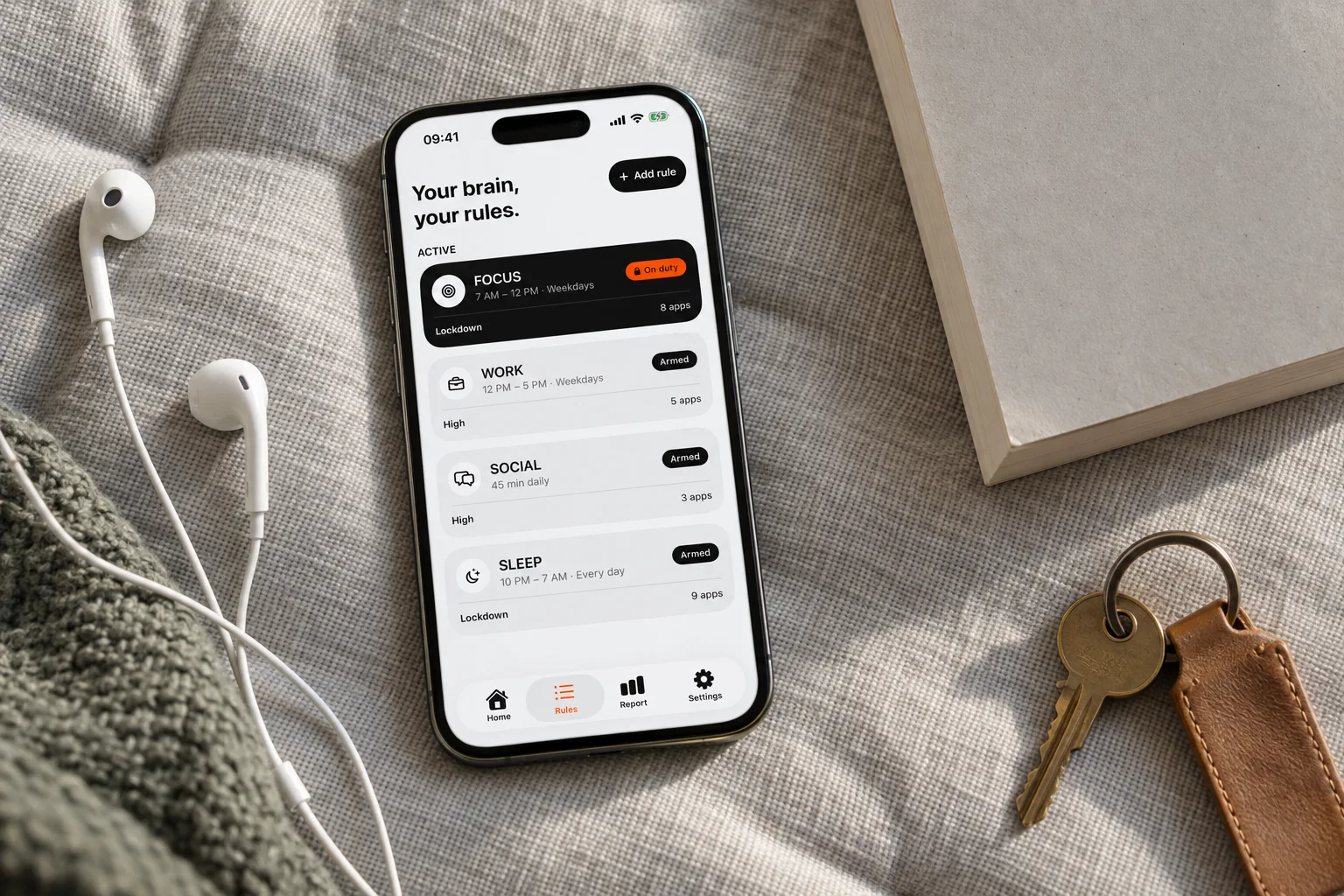
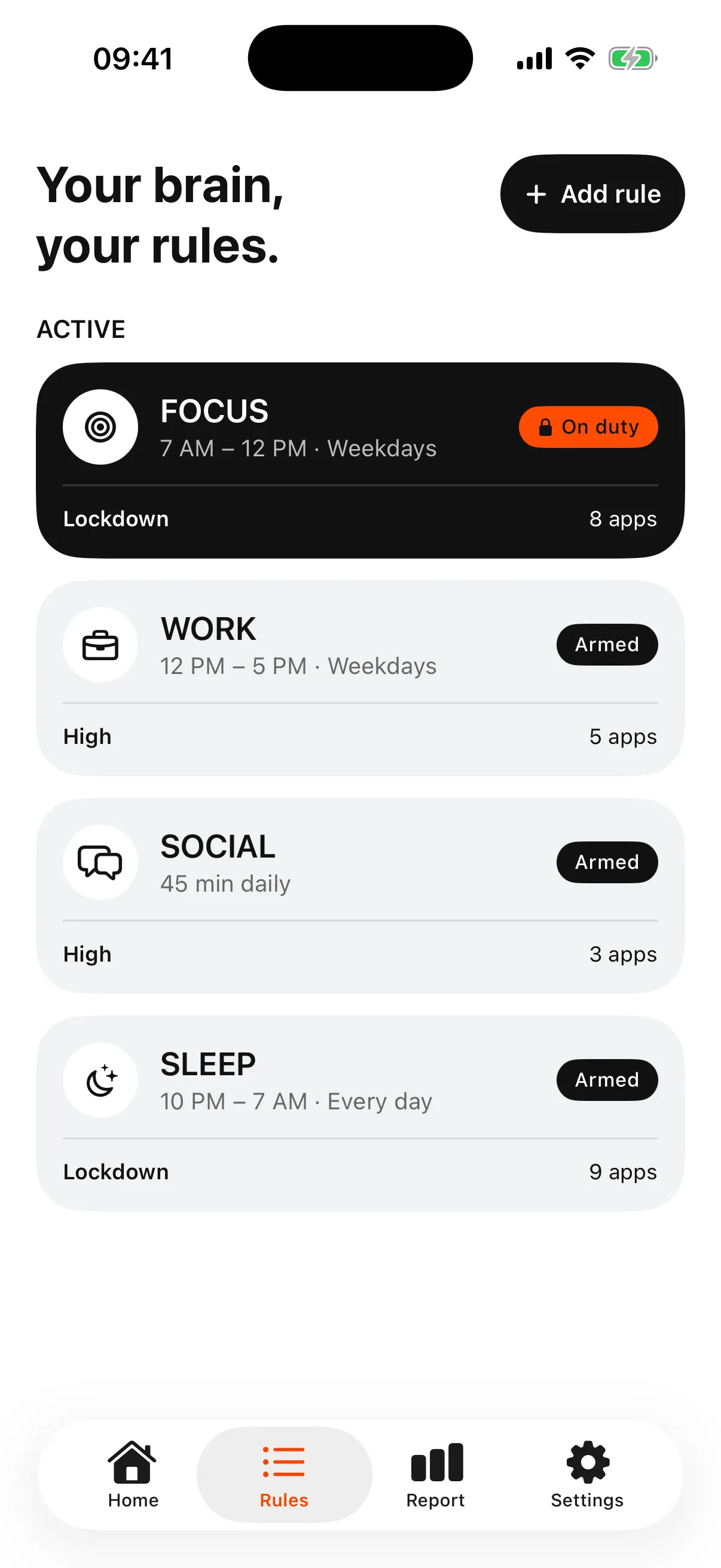
- Choose a preset (Sleep, Focus or Social) or create a Rule, then select apps in Apple’s app picker.
- Choose a scheduled window or a daily limit. For a window, set the start, end and days.
- Choose a Level: Normal, High or Lockdown. Lockdown requires a scheduled window.
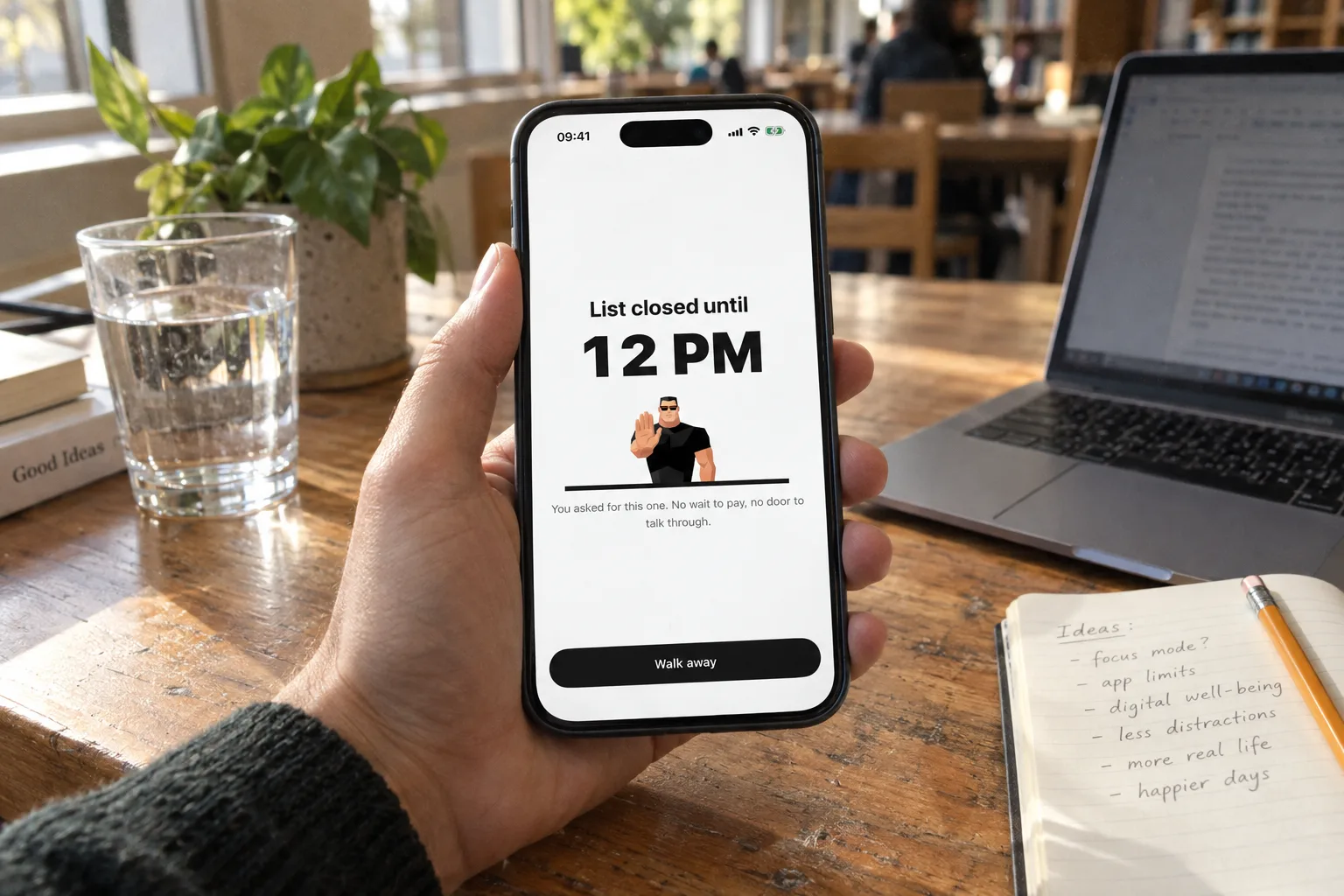
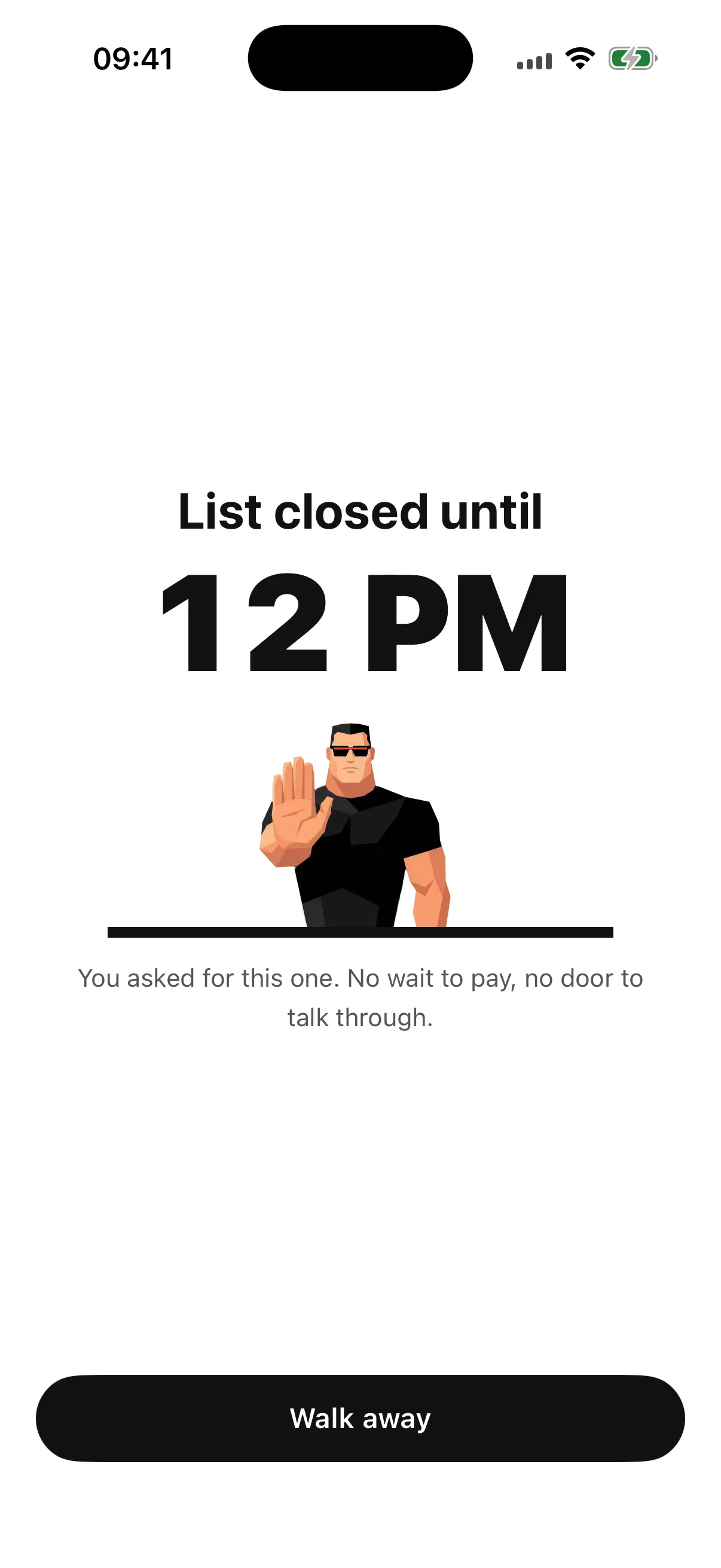
- Activate the Rule. A blocked app then shows a shield with no unblock button.
What happens when you want access
To use a blocked app, you open Bouncer. The Rule’s Level decides what happens. Normal adds a short variable wait. High makes each successful unblock more expensive: the wait grows and the session shrinks. Temporary sessions last 5, 10 or 15 wall-clock minutes. The countdown pauses if you leave the screen or lock your iPhone.
Lockdown has no temporary unblock. The apps stay blocked until the scheduled window ends. One local Emergency Pass can end active Lockdowns; it returns seven days after use. Changing or turning off an active Normal or High Rule also requires a wait, unless temporary access is already running. An active Lockdown cannot be edited.
Blocking runs on Apple’s system services, so no app can rule out every workaround.
Screen Time or an app blocker: which to choose
Screen Time is free and enough if a reminder works for you. For a firmer limit, turn on Block at Downtime and let someone else keep the passcode.
An app blocker makes sense if you keep ignoring your own limits, or want a different strictness for different moments. Bouncer is paid: a Monthly subscription with a seven-day free trial for eligible customers, or a one-time Lifetime purchase. The price in your country is shown in the app.
| Screen Time | Bouncer | |
|---|---|---|
| Price | Free, built into iOS | Monthly (7-day free trial if eligible) or Lifetime |
| When the limit is reached | A reminder you can ignore, by default (iOS 26) | A shield with no unblock button; access goes through Bouncer |
| Strictest option | Block at Downtime, with a Screen Time passcode | Lockdown: no temporary unblock until the window ends |
| Changing the rule during a block | Possible with the passcode | Normal and High: a wait first. Lockdown: not possible |
| Websites | Can be limited | Not blocked; Bouncer blocks apps |
Frequently asked questions
Can you block apps on iPhone without an app?
Yes. Screen Time in Settings can limit apps by schedule and by daily time. On iOS 26, use Downtime and App Limits. On iOS 27, use Screen Time Schedules and Time Allowances.
Why can I still open an app after my Screen Time limit?
By default, Apple lets you ignore a Screen Time limit once you reach it. On iOS 26, set a Screen Time passcode and turn on Block at Downtime to stop apps from opening during Downtime.
Can I lock an app with Face ID?
Yes. Touch and hold the app, then tap Require Face ID. The app then asks for Face ID when it opens, but this does not limit how long you use it.
Do iPhone app blockers need a jailbreak?
No. App blockers such as Bouncer use Apple’s Screen Time framework after you give Screen Time authorization.
Does Bouncer block websites?
Bouncer blocks the apps you select. It does not block individual websites.
Sources
- Apple: Set schedules with Screen Time on iPhone (iOS 26) ↗
- Apple: Screen Time Schedules and Time Allowances on iPhone (iOS 27) ↗
- Apple: Lock or hide an app on iPhone ↗
Sources checked on 24 September 2026. External features and offers can change.
A boundary you choose.
Start with a context you want to protect on your iPhone.