To block TikTok on iPhone, you can use TikTok’s Daily screen time setting, Apple’s Screen Time, or an app blocker. TikTok’s setting notifies you when you reach your daily time and can be turned off at any time. Screen Time can limit TikTok by schedule or by daily time. An app blocker such as Bouncer blocks the TikTok app during the window or after the limit you set. For nights, a schedule works better than a daily total.
Option 1: TikTok’s Daily screen time
TikTok describes this setting as a notification when you reach your time. You can turn it on and off at any time. The same Screen time menu also offers screen time breaks and sleep reminders.
- In TikTok, tap Profile at the bottom.
- Tap the menu at the top, then Settings and privacy.
- Tap Screen time, then Daily screen time.
- Turn the setting on and choose a time limit, or set a custom limit for each day.
Option 2: Screen Time
On iOS 26, go to Settings → Screen Time → App Limits → Add Limit, find TikTok in its category, then set the time. Apple notes that limits can be ignored once reached by default. To keep TikTok closed at night, use Downtime with Block at Downtime and a Screen Time passcode.
On iOS 27, use a Screen Time Schedule for the night window and a Time Allowance for the category that contains TikTok.
Option 3: Block TikTok with Bouncer
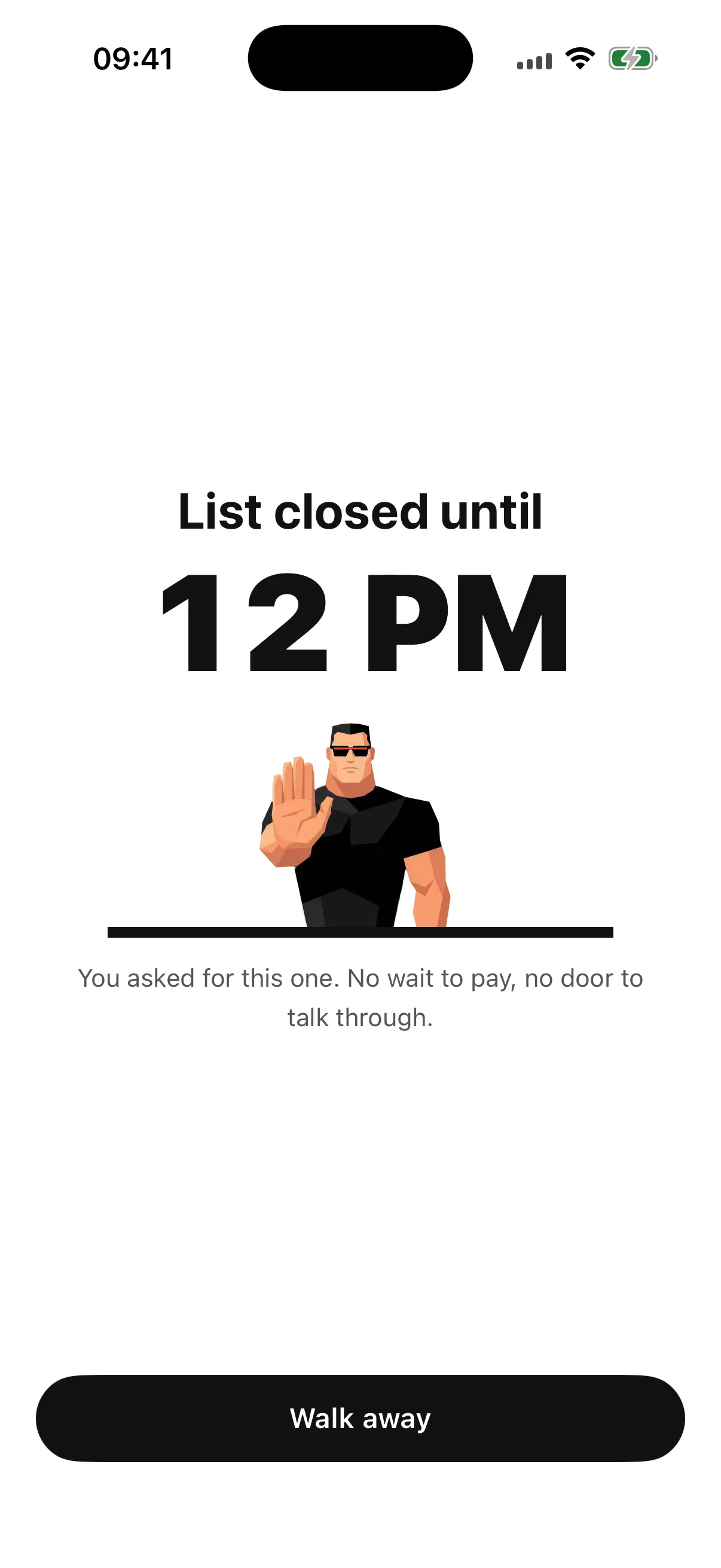
At night, the Level matters most. With Normal, you can still open TikTok after a short wait. With High, each late-night unblock makes the next wait longer and the session shorter. With Lockdown, TikTok stays closed until the morning, except for one Emergency Pass that returns seven days after use.
- Start from the Sleep preset for nights, or create a Rule.
- Select TikTok in Apple’s app picker.
- Set the window, for example 11 PM to 7 AM, and the days.
- Choose Normal, High or Lockdown. Lockdown keeps TikTok blocked until the window ends.
Why a night window works better than a daily total
A daily total runs out at a random time, sometimes in the morning. A night window protects the moment many people want to protect: the time before sleep. Choose the end time before you start, so that the block ends on its own in the morning. More ideas in how to stop doomscrolling.
🌙 Start the window 30 minutes before you usually go to bed, not at bedtime.
Frequently asked questions
Can I lock TikTok with a passcode?
On iPhone, you can require Face ID or the passcode to open an app: touch and hold the app, then tap Require Face ID. This asks for authentication; it does not limit time.
Does TikTok’s Daily screen time block the app?
TikTok describes it as a notification when you reach your daily time, and you can turn it off at any time.
How do I block TikTok only at night?
Use a schedule instead of a daily limit: Downtime on iOS 26, a Screen Time Schedule on iOS 27, or a Bouncer Rule with a night window.
Sources
- TikTok Help Center: Screen time ↗
- Apple: Set schedules with Screen Time on iPhone (iOS 26) ↗
- Apple: Lock or hide an app on iPhone ↗
Sources checked on 24 September 2026. External features and offers can change.
A boundary you choose.
Start with a context you want to protect on your iPhone.