You do not need a second phone to get a dumbphone experience. Keep the tools you need, such as calls, messages, maps and banking. Block the apps that pull you into endless scrolling, then make the rest less tempting with a simpler Home Screen and grayscale. Apple’s built-in settings help; an app blocker such as Bouncer makes the block harder to undo in the moment.
Decide what your dumbphone keeps
A dumbphone is not about removing everything. Write two short lists. Keep: calls, Messages, maps, camera, music, banking, the authenticator you need for work. Block: the apps where a “quick scroll” turns into half an hour, such as TikTok, Instagram, YouTube and games.
Be honest about the apps you switch to. If Instagram is blocked and you open X instead, X belongs on the block list too.
Simplify your Home Screen
- Touch and hold an app you want out of sight, tap Remove App, then Remove from Home Screen. The app moves to the App Library and still works from there.
- To hide a whole page, touch and hold an empty area, tap the dots near the bottom of the screen, then tap the circle under the page.
- Keep one page with only the apps from your “keep” list.
Turn on grayscale
Apple provides Color Filters as an accessibility feature. Grayscale changes how everything looks, including photos and videos. It does not block any app.
- Open Settings, then Accessibility → Display & Text Size.
- Tap Color Filters, turn it on, then choose Grayscale.
Use a Focus with one Home Screen page
- Open Settings → Focus and choose or create a Focus.
- Tap Home Screen, turn on Custom Pages, then select your simple page.
- Tap Apps to allow notifications only from the apps you keep.
Block the apps you would still open
A hidden app is one search away. To make the dumbphone setup hold, block the apps on your list. With Screen Time, Apple notes that limits can be ignored once reached by default on iOS 26; Block at Downtime with a Screen Time passcode keeps apps closed during Downtime (why limits get ignored).
In Bouncer, create a Rule with the apps on your block list and a scheduled window. A blocked app shows a shield with no unblock button. For the hours when you want a real dumbphone, choose Lockdown: no temporary unblock until the window ends, except one Emergency Pass that returns seven days after use.
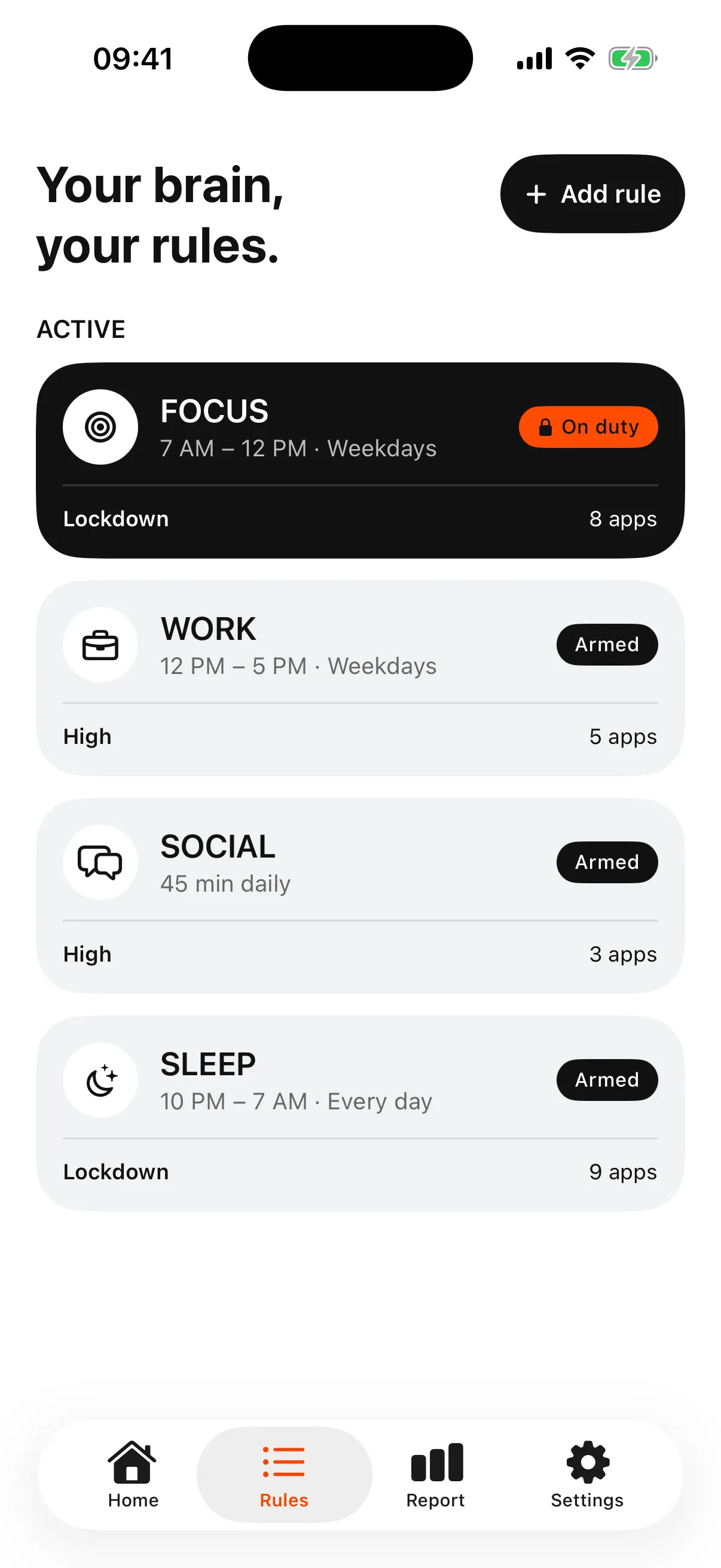
A dumbphone for some hours, a smartphone for the rest
Many people do not need a dumbphone all day. Evenings, weekends or work hours are often enough. Use a schedule for those hours and keep the phone fully useful the rest of the time. See how to stop doomscrolling to choose the moment.
Frequently asked questions
Can I turn my iPhone into a dumbphone without buying a new phone?
Yes. Keep only essential apps on one Home Screen page, turn on grayscale, use a Focus with that page, and block the apps you would still open with Screen Time or an app blocker.
Can I keep WhatsApp and Maps?
Yes. Leave them out of your block list. You decide which apps stay available.
Does grayscale stop endless scrolling?
Grayscale only changes colors. It does not block anything. Blocking the apps is what stops them from opening.
Is a real dumbphone better?
A separate basic phone removes apps completely, but you may lose tools you need, such as maps, banking or an authenticator. An iPhone setup keeps those tools. Choose based on what you need every day.
Sources
- Apple: Organize the Home Screen and App Library on your iPhone ↗
- Apple: Change display colors on iPhone ↗
- Apple: Set up a Focus on iPhone ↗
- Apple: Set schedules with Screen Time on iPhone (iOS 26) ↗
Sources checked on 26 September 2026. External features and offers can change.
A boundary you choose.
Start with a context you want to protect on your iPhone.