SHORT ANSWER
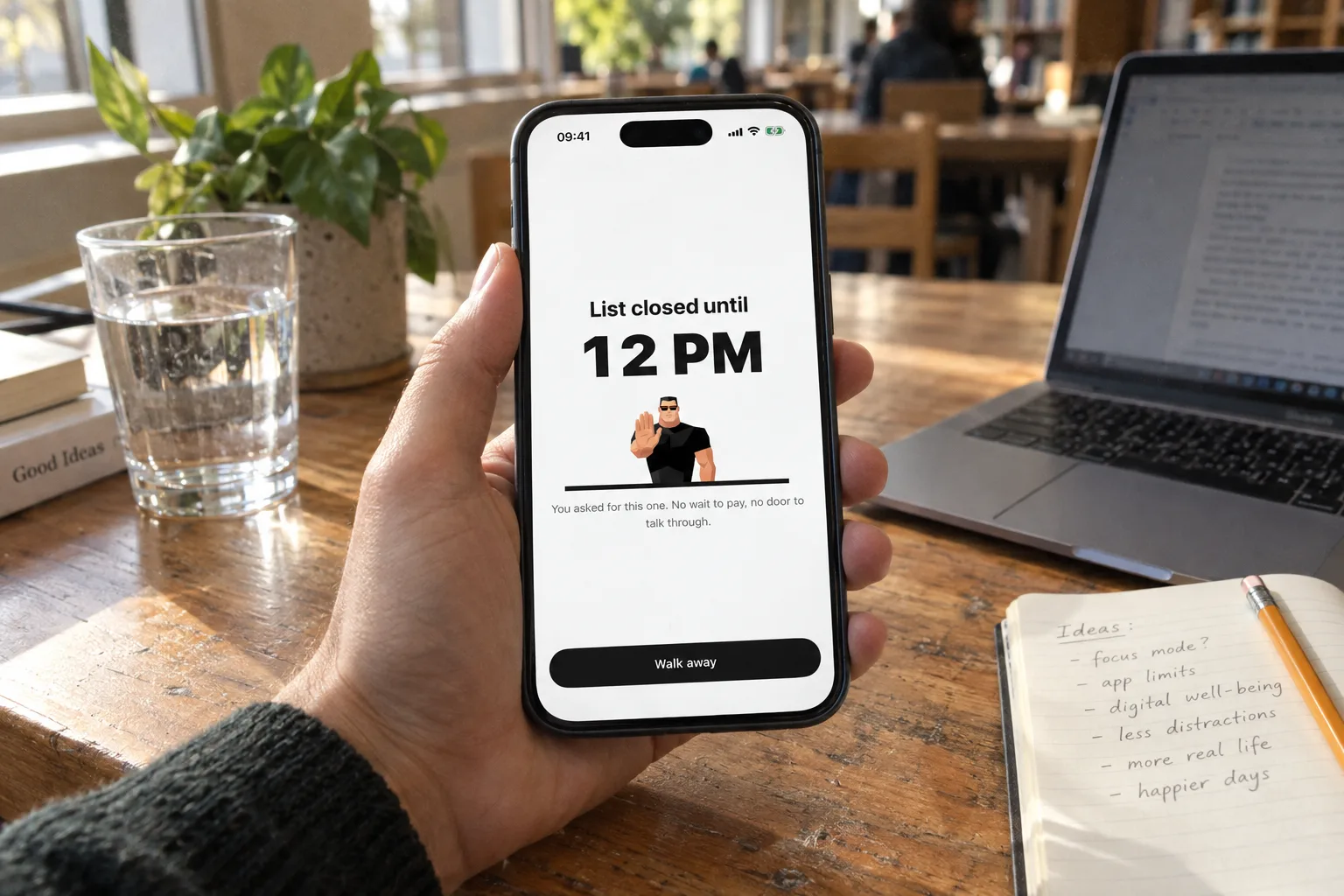
To reduce screen time on iPhone, identify the apps and moments you want to change, choose a daily limit or a blocked time window, and give planned visits an end. Apple Screen Time has these controls built in. Bouncer is an iPhone app blocker that adds a deliberate pause before temporary access with Normal or High. Aim at the scrolling you did not want, and keep the phone use that helps you. Step by step: how to block apps on iPhone.
Start with your actual screen time
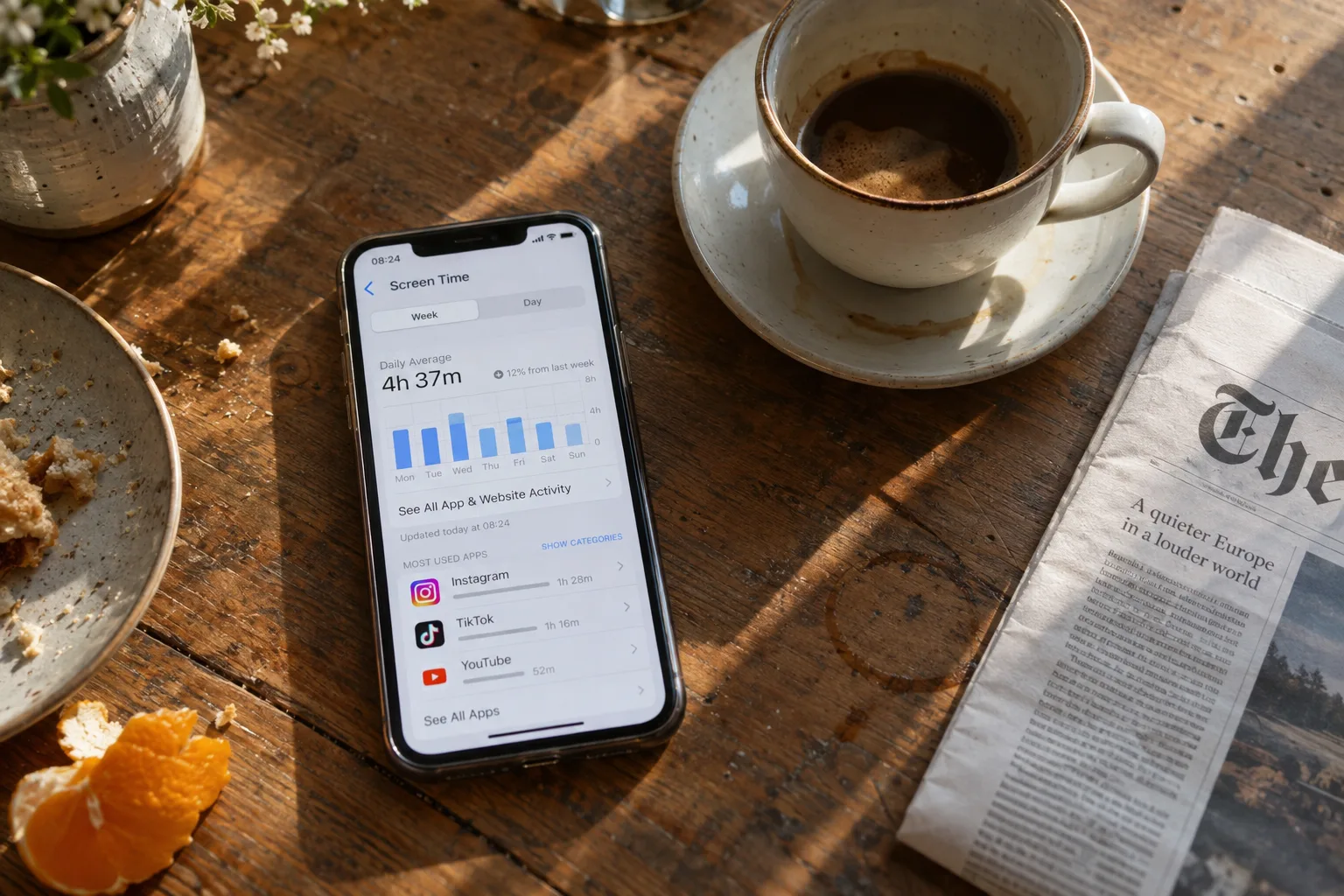
Open Settings → Screen Time and review your app activity for the day or week. If you share Screen Time across Apple devices, check which device the report covers before comparing numbers. Apple’s guide below explains the reporting options.
Look for the visits you did not mean to make. A long call, a map or a useful tutorial can serve a purpose. Opening Instagram again and again while writing may be the habit you want to change. Note the app, the moment and what you would rather have been doing.
Choose an app limit or a protected window
A daily app limit answers “how long?” A schedule answers “when?” If you want less social media across the day, choose an allowance for selected apps. If you want an uninterrupted work session, block social media apps during that session. An unused allowance does not protect a particular hour.
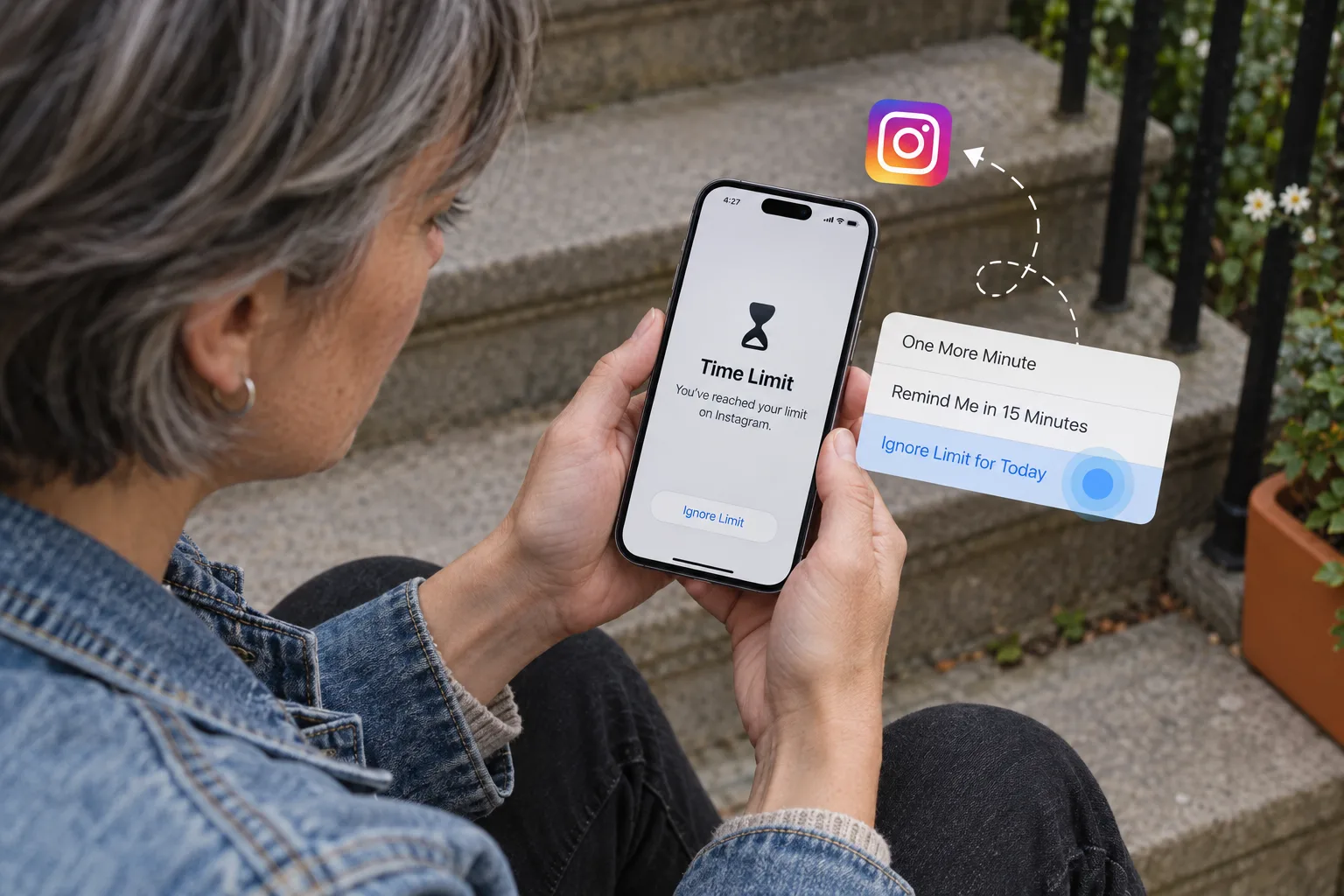
On iPhone, Screen Time provides App Limits and scheduled Downtime on iOS 26, and Screen Time Schedules and Time Allowances on iOS 27. Check which option you pick: some only show a reminder, others actually block the app. Apple’s instructions list the controls for your iOS version. Bouncer also lets a Rule use a daily limit or a scheduled window.
Spend less time on Instagram, TikTok and YouTube
Select the apps that lead to unwanted scrolling: Instagram, TikTok, YouTube, X, Threads or Snapchat, for example. Keep useful tools outside the selection. If you need an app for work or to reply to someone, plan that use outside your protected window or choose a Level that permits temporary access.
Bouncer blocks whole apps: it cannot block only Instagram Reels or YouTube Shorts and leave the rest of the app open. Check this point before you choose any app blocker.
Use Bouncer to put a pause before endless scrolling
Lockdown keeps the window fixed while it is active. The only exception is a local Emergency Pass, which comes back seven days after use. Bouncer is paid, with a Monthly auto-renewing subscription (seven-day free trial for eligible customers) or a one-time Lifetime purchase; the current local price appears in the app.
- Authorize Screen Time, create a Rule and choose the distracting apps in Apple’s app picker.
- Choose a daily allowance or a scheduled window that protects a specific activity.
- Pick Normal, High or Lockdown, then activate the Rule. Lockdown requires a schedule.
- For temporary access with Normal or High, open Bouncer and complete the wait. The shield on the blocked app has no unblock button.
- Choose an available session of 5, 10 or 15 wall-clock minutes. High increases the wait and reduces available durations after successful unblocks.
Plan what you will do instead
Before your next focus window, leave your notebook, instrument or project open and ready. Decide on one action: draft the opening paragraph, work through a problem or read a chapter. For time with others, choose a meal or a walk where scrolling can wait.
The goal does not have to be productivity. It can be a conversation with your phone away, or a quiet break. You can still open a social app later, when you decide to.
Check whether unwanted screen time is decreasing
Compare similar days or equal periods, using the same device and app selection. Separate total phone use from time in distracting apps. Bouncer’s Report shows daily averages for blacklisted apps and total screen time; it does not calculate the value of the time you spent elsewhere.
If scrolling moved to another app, revisit your selection. If a Rule blocks something essential, change it. Judge the setup by the moments it protected as well as by the numbers. The app screens on this page use demo data, not measured Bouncer results.
Can you reduce screen time without deleting social media?
Yes: app limits and schedules let you keep an app installed while deciding when it is available. A planned visit can still be useful. In Bouncer, Normal and High provide time-bounded temporary access after a wait. The point is to make a choice before the scrolling starts.
Does a screen time app guarantee a reduction?
No. A blocker provides controls; the result depends on your rules, your use and system behavior. Bouncer does not promise a percentage reduction, a fixed number of hours saved or a health outcome. Start with a specific moment and review your own experience.
Sources
- Apple: Get started with Screen Time on iPhone ↗
- Apple: Set schedules and app limits with Screen Time ↗
Sources checked on 24 September 2026. External features and offers can change.
A boundary you choose.
Start with a context you want to protect on your iPhone.