SHORT ANSWER
For a study session, block the social media apps that interrupt your work during a defined window. Keep learning and communication tools you need available, and decide how exceptions should work before the session starts. To keep TikTok and Instagram out of the session, see how to stop doomscrolling.
Give the session a concrete job
Choose the work before the timer: revise one chapter, draft an outline or complete a set of questions. “Study all afternoon” is hard to check afterwards; “revise chapter 3” is easy.
Write down what you need for it. If a reference app, a class group or an authenticator is essential, leave it out of the blocked selection so the block never gets in the way of the work.
Set the boundary before starting
- Choose the apps that usually pull you away from this work.
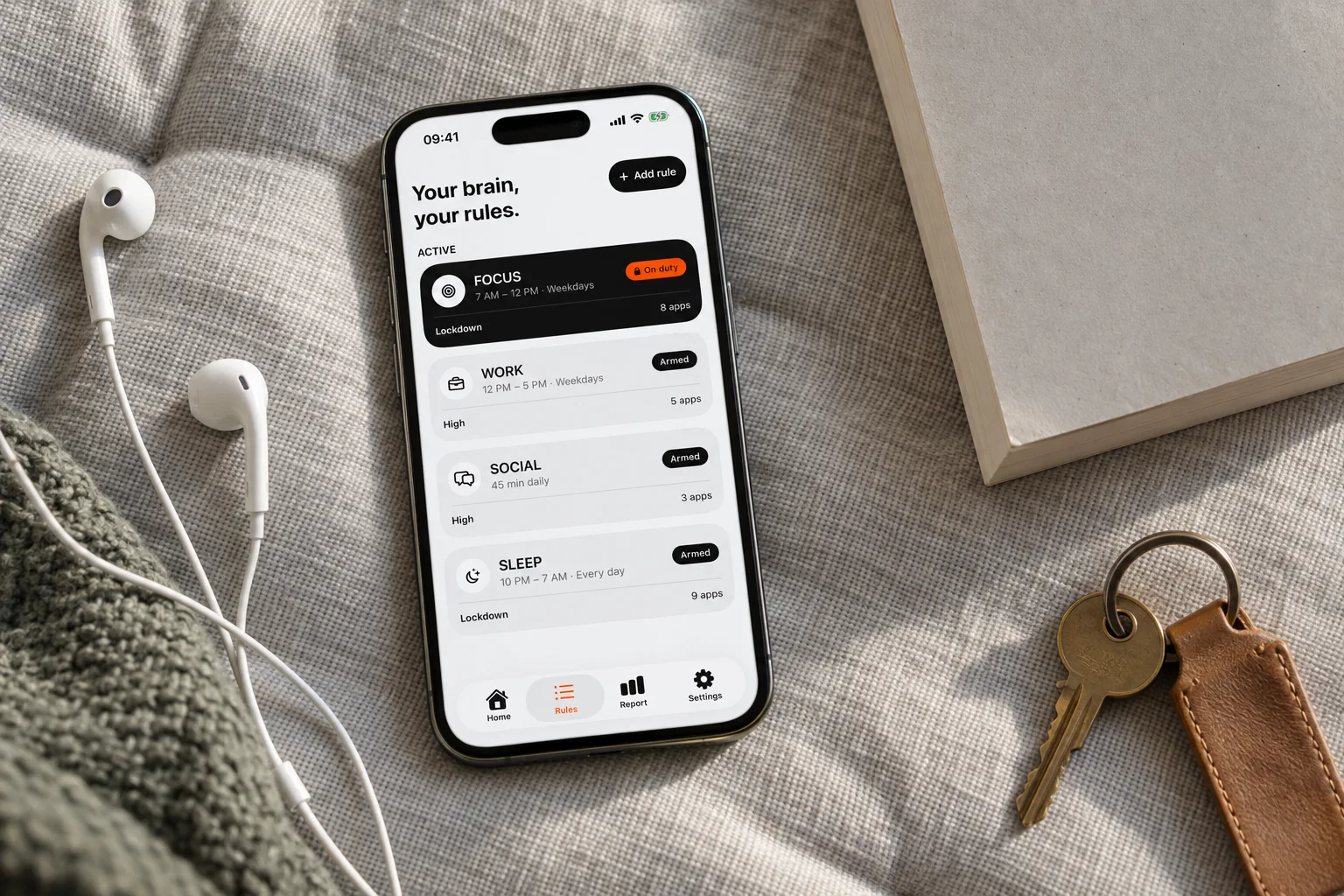
- In Bouncer, create a Rule or adapt the Focus preset.
- Set the scheduled start and end, including the days if the session repeats.
- Choose the Level: a short pause with Normal, a growing wait with High, or no access until the end with Lockdown.
- Check the apps and schedule, then activate the Rule.
Choose a Level for a real session
Normal fits a session where you may really need the app once or twice. High is for when you keep asking: each successful unblock makes the next wait longer and the available session shorter. You still decide whether to complete the wait.
Lockdown keeps the window fixed: an active Rule cannot be edited, turned off early or unblocked. The only exception is the Emergency Pass. Read how it works before you use Lockdown with a new setup.
Decide what a break is for
A break can be a short walk, water, a message or a planned visit to an app. If you choose temporary access in Normal or High, the session lasts 5, 10 or 15 wall-clock minutes, with fewer choices as High escalates. The minutes keep running when you leave the app.
A break can also have no phone in it at all. Pick one you can finish and still get back to the work. What counts as a useful break is your call; Bouncer does not judge it.
Check the work, then the report
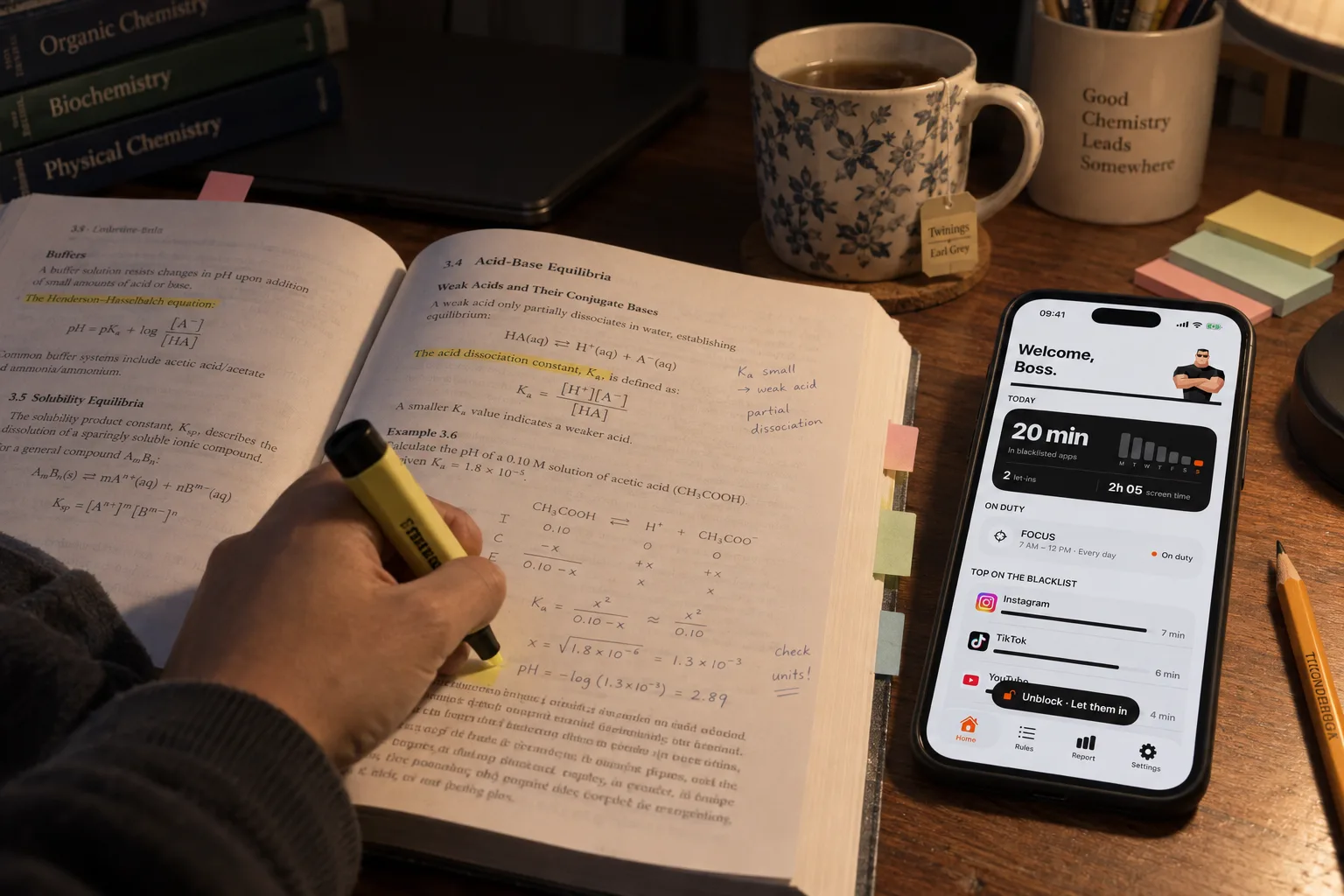
First ask whether the task moved forward. Then check the phone side: did the blocked apps stay out of the session? Bouncer’s Report can show time in blacklisted apps alongside total screen time, using daily averages for the selected period.
The numbers are context. They are not a grade, and Bouncer does not promise better marks. If a tool you needed kept getting blocked, change the selection. If the session ended too early, change the schedule for next time.
Three study setups
The Levels are explained in Normal, High and Lockdown.
| Situation | Trigger | Level |
|---|---|---|
| Homework every weekday evening | Schedule, Mon–Fri, 6 PM – 8 PM | Normal: a short pause if you really need a break |
| Revision week before exams | Schedule on the revision days | High: each break costs more than the last |
| Exam morning or a deadline | Schedule with a clear end | Lockdown: no temporary unblock until the end |
Frequently asked questions
Which apps should stay available while studying?
The ones the work needs: a dictionary, a class group, an authenticator, music if it helps. Block the apps that pull you into endless scrolling.
Can I take short breaks?
With Normal or High, you can unblock for 5, 10 or 15 minutes after a wait. The time runs on the clock, so a 5-minute break ends after 5 minutes.
Can the block repeat every weekday?
Yes. A scheduled window can apply only on the days you choose, such as Monday to Friday.
A boundary you choose.
Start with a context you want to protect on your iPhone.